Creating an Alert
This guide is for alerts that stretch across the top of the page. Alerts within page content can also be created in the body field.
Video Guide to Creating a Banner Alert
-
Navigate to alert creation
When logged in, go from Content to Add Content to Alert.
Image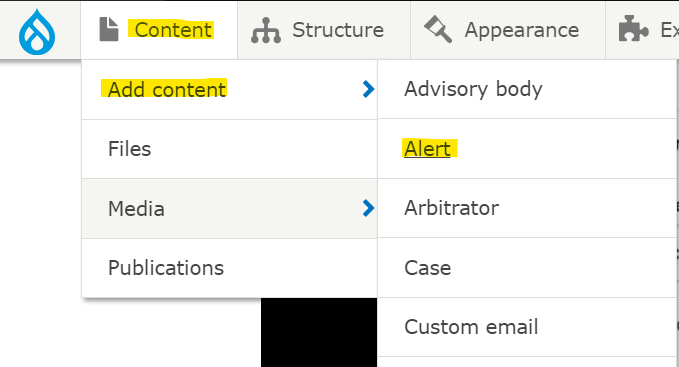
-
Compose your alert text
Alerts are for short, pithy text. They can include links that lead to more detailed information (links can go to any page on your site). We recommend keeping alerts to about 200 characters total so they will be a reasonable height on mobile phones.
The alert's Heading appears in bold, while the Body appears in plain text unless you format it further. Both are required.
Image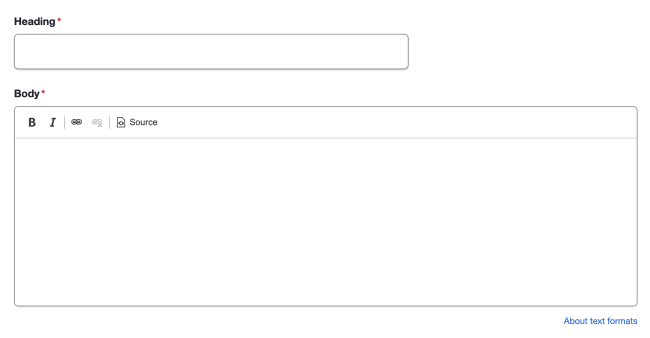
-
Choose display options
- Information alerts are blue with a "i" icon.
- Success alerts are green with a checkmark.
- Warning alerts are yellow with an exclamation mark in a triangle.
- Error alerts are red with an exclamation mark in a circle
Image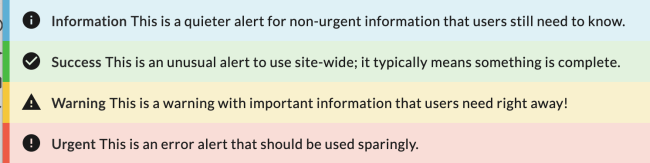
You can also use the Options section to place a close button on your alert to allow users to dismiss it, or to specify which pages your alert will appear on. If you don't specify, the alert will appear site-wide.
Image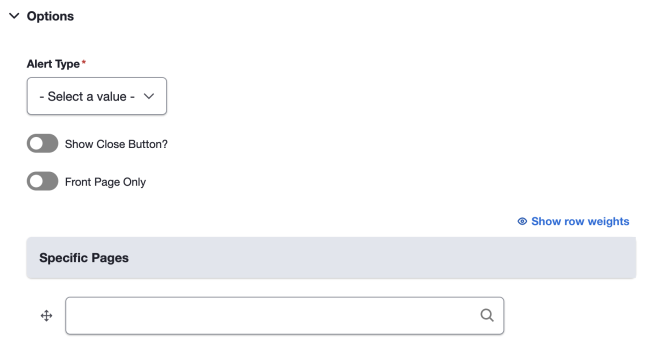
-
Save your alert.
-
Clear site cache
If you are not seeing your alert appear please view how to clear the site cache.