Landing Page
A guide to Landing Pages
Create a Landing Page
You need to be logged in to your site's Drupal instance to do this.
-
From the top menu, locate Content and hover over it. A menu will appear below.
Image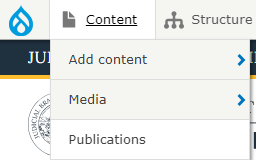
-
Hover the mouse over Add Content. Another menu will appear to the right.
Image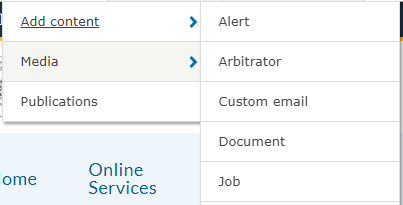
-
Use the mouse to click on Landing Page.
Image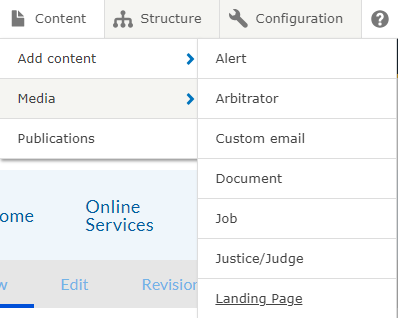
Questions
Landing pages are pages that help group subpages.
For example, General Information is a landing page that directs users to subpages that contain more specific information like updates, locations, and hours of operation.
All fields with a red asterisk indicate that the field is required.
If you want to publish the landing page immediately, select the Published option in the "Change to:" dropdown in the right hand menu. Otherwise, click the Save button.
You can put Accordions, Action Lists, Body, Cards, Hero, Hero-Banner, Steps, Views Reference, and Webforms in a Landing Page
The Hero/Hero-banner is the first component on the page; all other components can be in any order and can be used multiple times on a single Landing Page.